
Divi Sensei Icons
Divi Sensei Icons is a next-generation icon library for Divi 5. It adds 14,000+ custom icons to Divi’s native icon picker and makes them render everywhere Divi renders icons — in the Visual Builder and on the front-end — without modifying Divi core. This guide covers installation, the icon dashboard, using icons in your designs, and how the plugin works under the hood.d shapes where you can wrap your images easily. Each shape has a custom border that can be enabled or disabled.
Overview
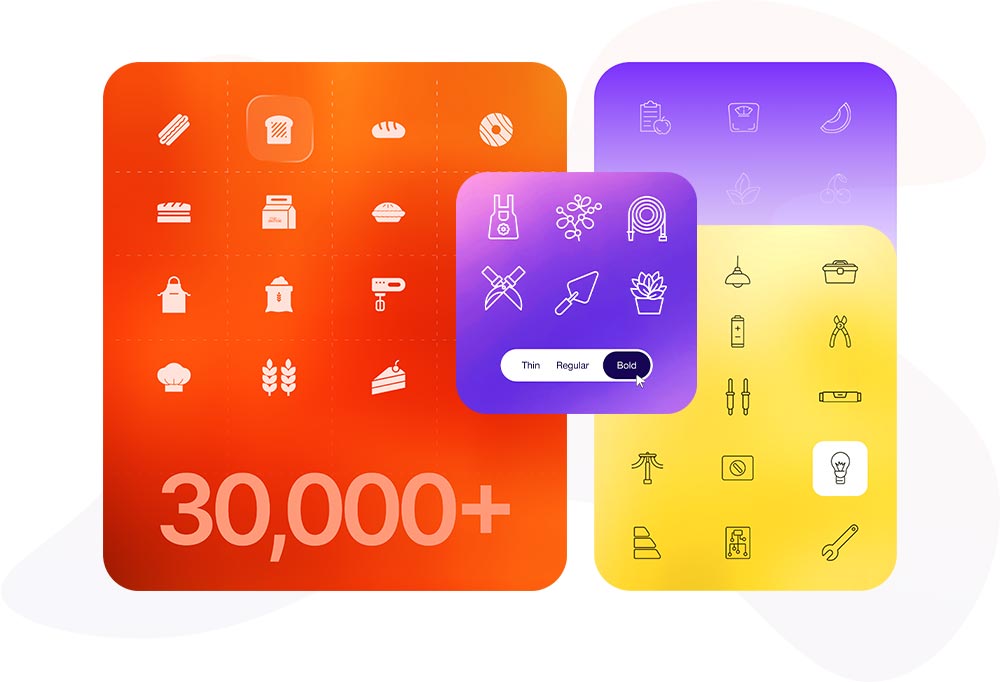
Divi 5’s built-in icon set is small and generic. Divi Sensei Icons replaces that limitation with a huge, professionally designed library:
- 14,000+ unique icons, or 30,000+ counting weight variations.
- 37+ custom icon sets — including business-specific collections you won’t find elsewhere.
- Every line icon ships in three stroke widths: thin, regular, and bold.
- Popular free libraries — Material, Phosphor, and Lucide — are included too.
- Deep, native integration with the Divi 5 Visual Builder — icons work in every module, including third-party ones.
- Load-on-demand performance: only the icons you actually use load on the front-end.
Requirements
- WordPress with the Divi 5 theme active.
- The plugin is built for the Divi 5 architecture. Divi 4 is not supported.
Installation & Activation
Installing the plugin
- In WordPress, go to Plugins → Add New → Upload Plugin.
- Upload the
ds-divi-iconsZIP file and click Install Now. - Click Activate.
Once active, a new Divi → Divi Sensei Icons menu appears in the WordPress admin.
Activating your license
To receive updates (and unlock licensed features), activate your license:
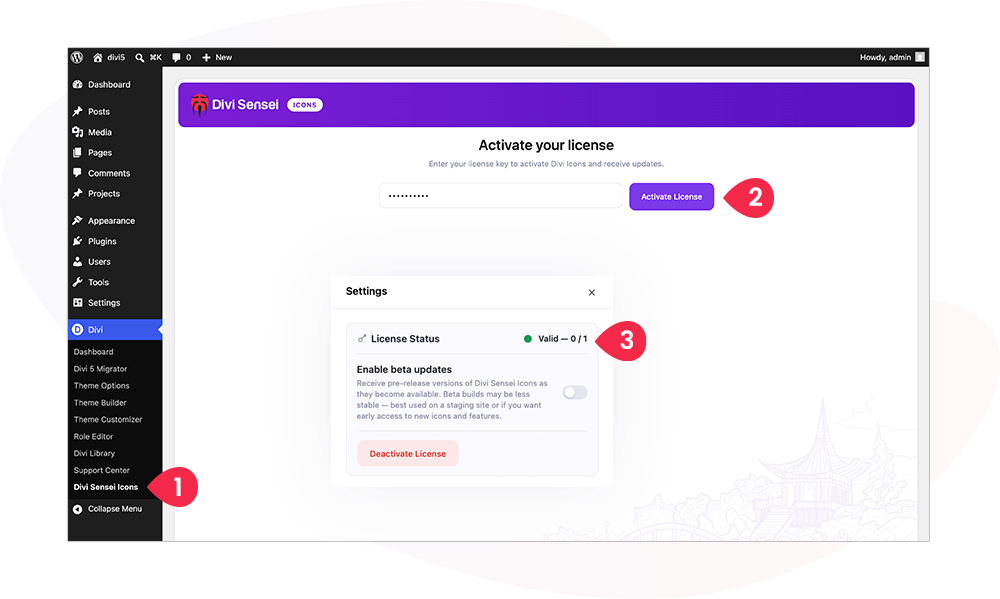
- Navigate to Divi → Divi Sensei Icons
- Enter your License key and click Activate License.
- The Settings panel shows your License status and remaining site activations.
You can Deactivate License at any time to free an activation for use on another site.
Beta updates
In the Settings panel, enable Beta updates to receive pre-release versions as they become available. Beta builds may be less stable — use them on a staging site or when you want early access to new icons and features.
The Icon Library Dashboard
The dashboard (Divi → Divi Sensei Icons) is where you browse, search, and manage every icon set.
The cards grid
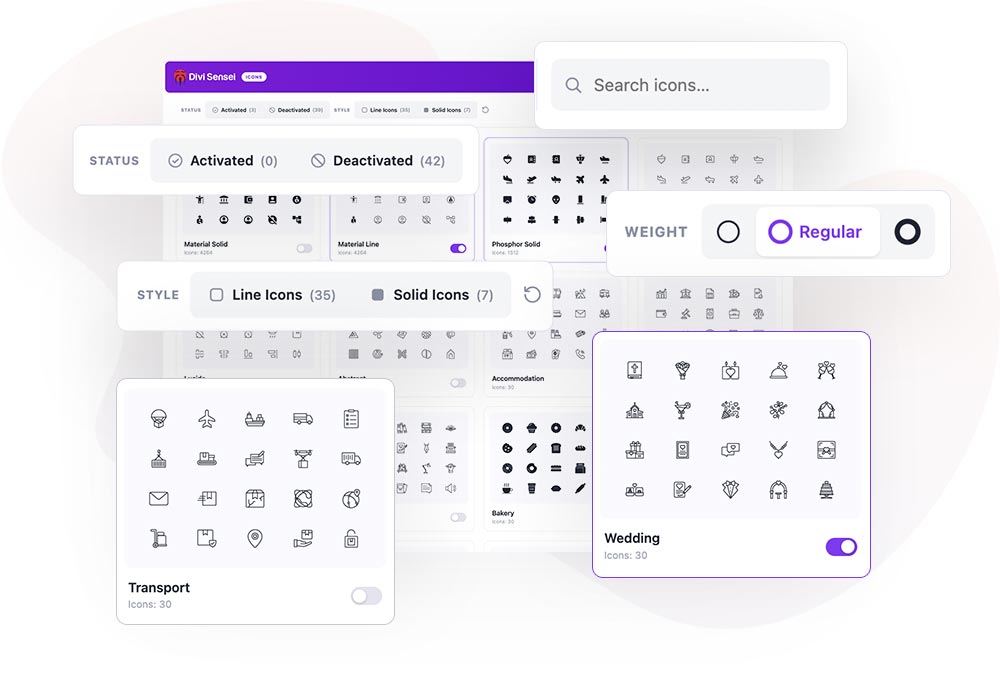
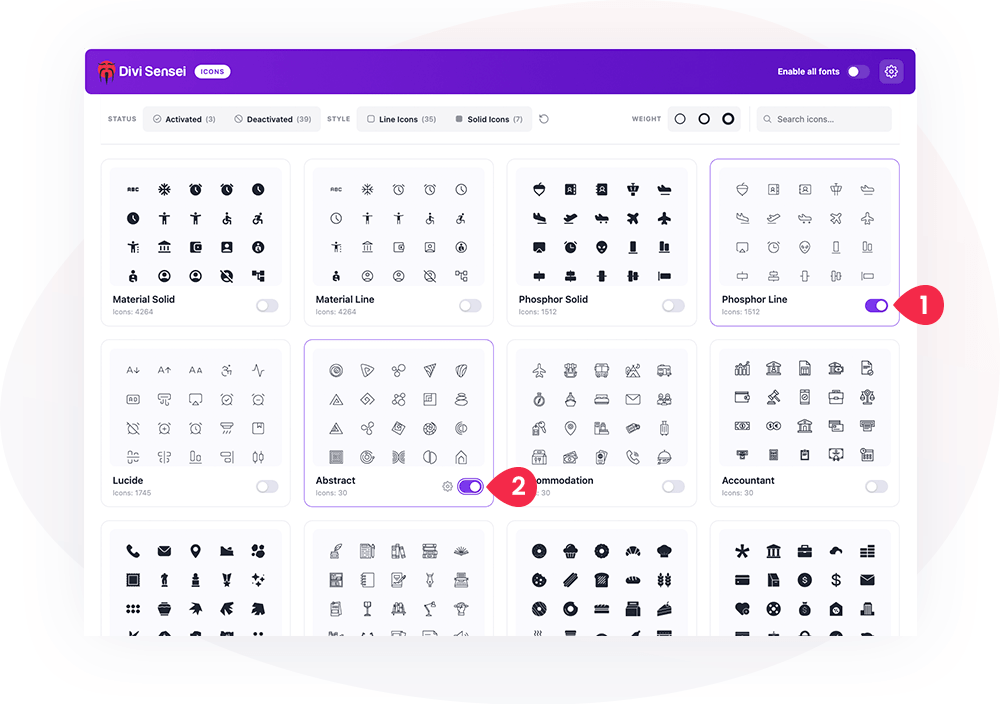
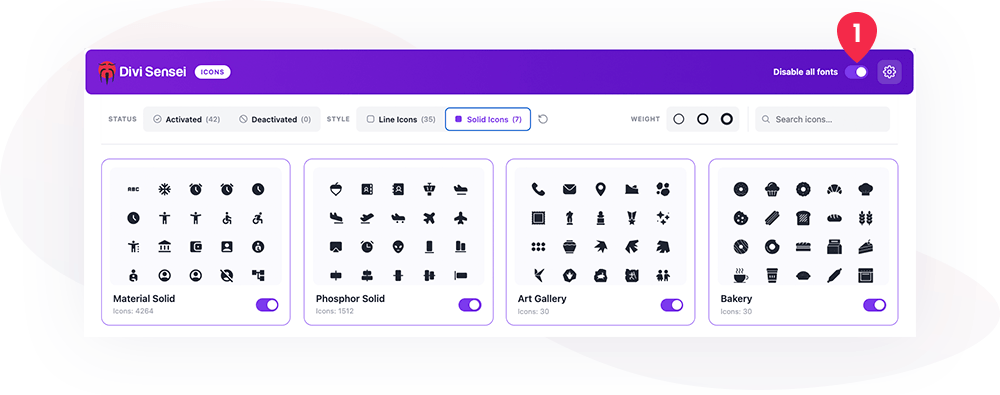
Every icon set is shown as a card with its name, an icon count, a preview, and an on/off switch. Sets are ordered with the most useful collections pinned first, followed by the rest alphabetically.
Enabling & disabling icon sets
Each card has a switch to enable or disable that set. This matters for performance:
- Only enabled sets are loaded into the Visual Builder, keeping the icon picker fast and uncluttered.
- Disabled sets stay out of the builder entirely until you turn them back on.
Toggling a set auto-saves immediately.
Enable / disable all
Use the master switch in the top bar to Enable all fonts or Disable all fonts at once. Disabling everything also resets font settings (force-load flags, per-font default weights, and the global default weight).
Searching icons
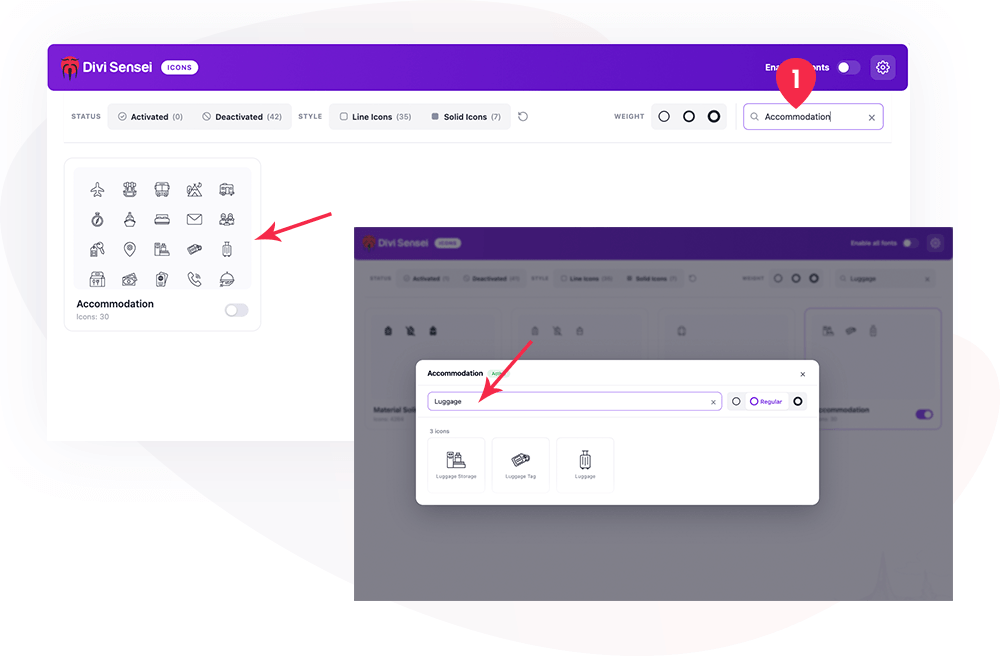
- The filter bar search box (Search icons across all fonts) finds icons by name across the entire library.
- Inside a set’s detail view, a second search box narrows results to that set.
Filtering
Filter the library by category and style:
- Activated / Deactivated — filter by whether a set is currently enabled.
- Line Icons / Solid Icons — filter by rendering style.
Each filter shows a live count.

Setting the icon stroke width (global)
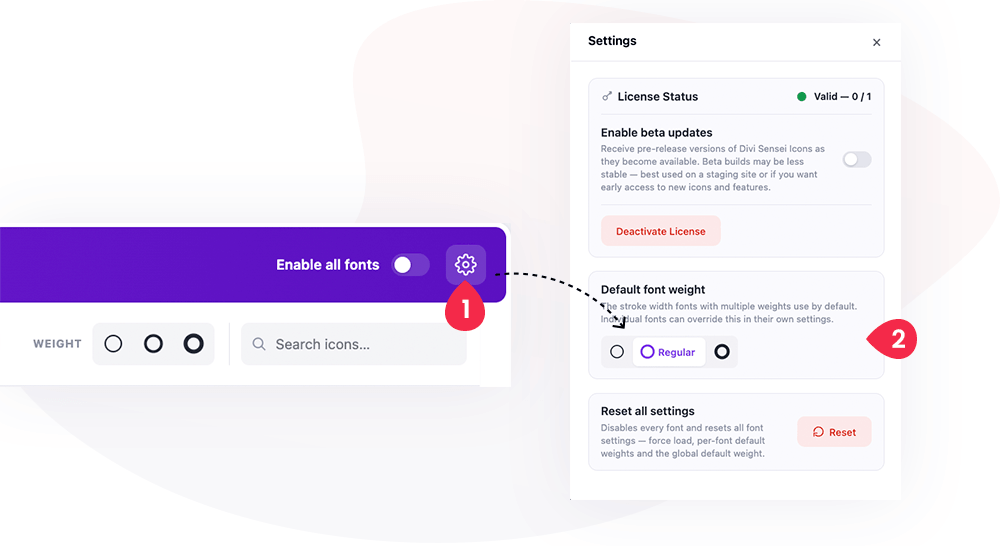
Line icons come in three weights. The Icon stroke width control (thin / regular / bold) sets the global default weight applied to every line icon in your designs. Solid icons are weight-agnostic and ignore this setting.
Per-font settings (the font modal)
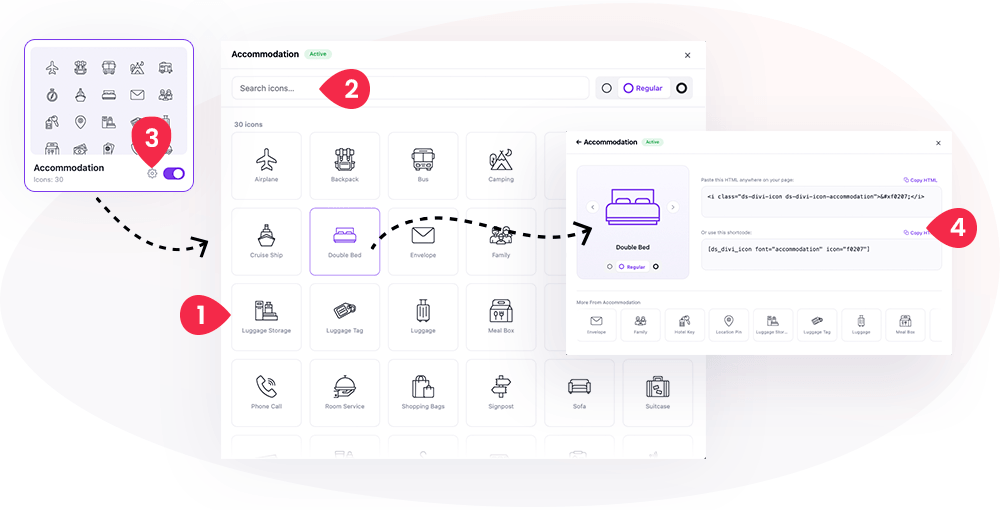
Click a card to open its detail modal, where you can:
- Preview every icon in the set.
- Search within the set.
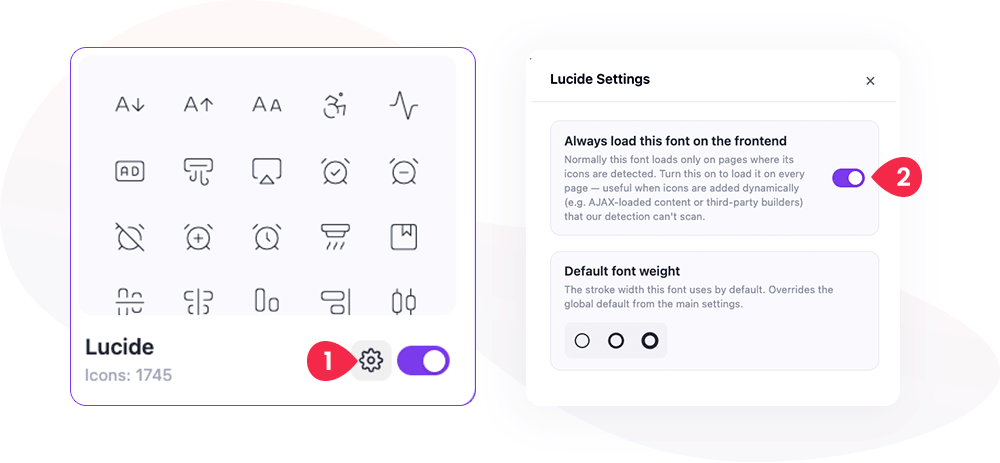
- Set a Default font weight for that specific set (overrides the global default for this font only – click Settings icon on the card).
- Toggle Always load this font on the frontend (see Always-load option – click Settings icon on the card).
- Copy HTML or a shortcode snippet for any individual icon (see Using icons).
Reset all settings
The Settings panel includes Reset all settings, which disables every font and clears force-load flags, per-font default weights, and the global default weight. Use it to return to a clean slate.
Using Icons
In the Visual Builder
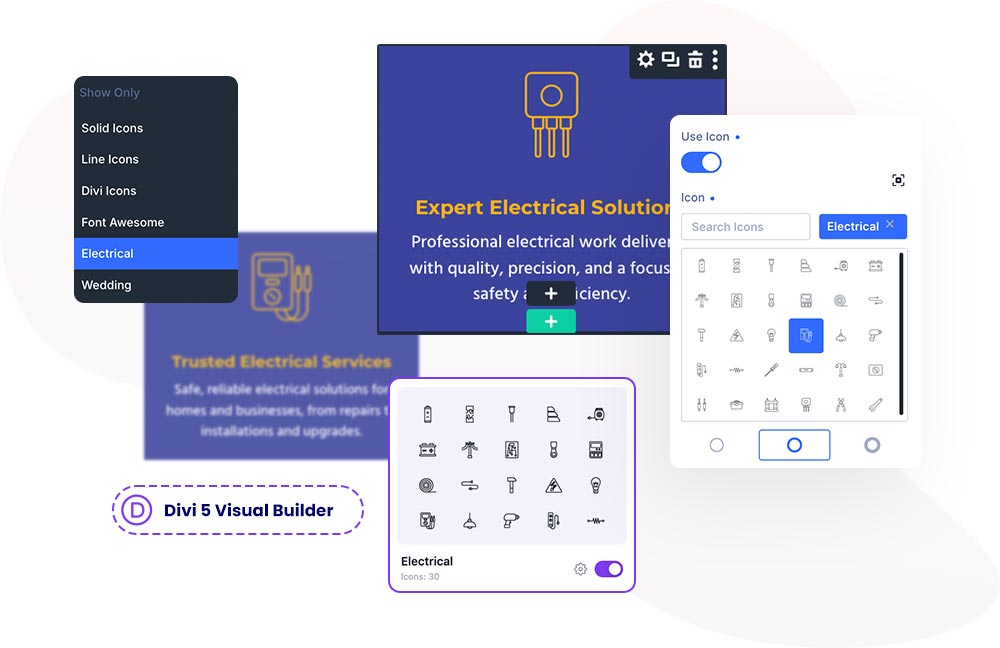
This is the primary way to use icons. Divi Sensei Icons integrates directly into Divi’s native icon picker, so:
- Every enabled set appears in the icon picker’s filter dropdown.
- Icons are available in every module that has an icon field — Blurb, Button, Accordion toggles, and more — including third-party modules.
- There is nothing special to insert: pick an icon exactly as you would a built-in Divi icon.

Choosing a line weight in the Visual Builder
When you pick a line icon, the picker lets you choose its weight (thin / regular / bold). If you don’t set one explicitly, the icon uses the per-font default (or the global default) configured on the dashboard.
Copy as HTML
For use outside a module (e.g. in a Code module or a theme template), open a set’s modal, click an icon, and choose Copy HTML. The snippet looks like:
<i class="ds-divi-icon ds-divi-icon-lucide">󴸀</i>The ds-divi-icon-<slug> class both renders the glyph and triggers the plugin’s conditional front-end loading, so the font is enqueued automatically on pages where the snippet appears.
Shortcode
You can also render an icon with a shortcode:
[ds_divi_icon font="lucide" icon="f4e00" weight="400"]font— the set slug (e.g.lucide,accountant,material-line).icon— the icon’s hex codepoint (e.g.f4e00).weight— optional;200(thin),400(regular), or700(bold) for line fonts.
The modal’s Copy buttons generate both the HTML and the shortcode for you, so you never have to look up codepoints by hand.
Icon Sets Included
Custom business sets
The heart of the plugin: 37+ purpose-drawn sets designed for real industries, each available in three matching stroke weights. They include (among many others):
Accountant, Accommodation, Author, Banking, Bakery, Bistro, Brewery, Butcher, Cafe, Charity, Church, Cleaning, Construction, Copywriter, Corporate, Creative, Education, Electrical, Farmers Market, Fitness, Florist, Handyman, Interior, Lawyer, Marketing, Medical, Nutritionist, Photography, Pizzeria, Sport, Sushi, Transport, Vetcare, Wedding, Winery, Art Gallery, Abstract.
Popular libraries
The most-used free icon libraries are bundled too, so you have them in one place:
- Material — Solid and Line (the Line variant in thin / regular / bold).
- Phosphor — Line and Solid.
- Lucide — Line, in thin / regular / bold.
Line vs solid, and weights
- Line sets are outline-style and ship in three weights (thin / regular / bold). All line sets share a consistent stroke-width scale, so mixing sets looks uniform.
- Solid sets are filled, single-weight icons.
How It Works
You don’t need to know the internals to use the plugin — but here’s what makes it work so seamlessly.
Native Divi 5 integration
Instead of adding a separate “icons” module, Divi Sensei Icons injects its icons into Divi’s own icon system. On the rendering side it uses a font-composition technique: each custom font is mapped to its own private range of character codepoints and layered into the font family Divi already uses for icons. The browser composes the fonts per-character, so your custom glyphs render through Divi’s normal icon pipeline while Divi’s built-in icons stay untouched. Because this happens at the font layer — below Divi’s CSS and JavaScript — it works in the Visual Builder, on the front-end, and inside any module, and it survives Divi updates.
A patched icon resolver for the front-end
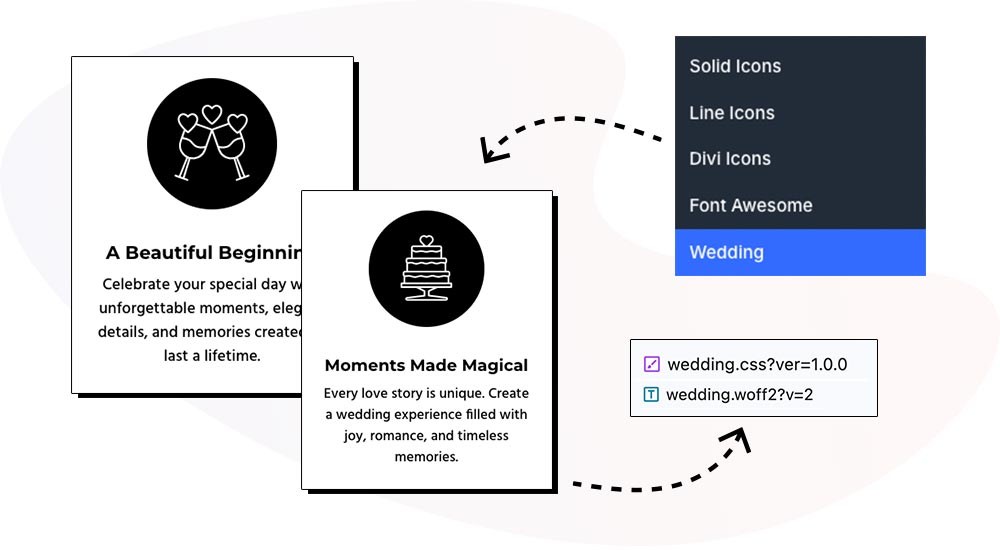
Divi’s front-end skips the icon wrapper for icon types it doesn’t recognize. The plugin ships a drop-in replacement for Divi’s icon utility that is loaded first, so Divi recognizes every custom icon type and renders it correctly on the front-end — in native and third-party modules alike.
Front-end load-on-demand
On the front-end, the plugin scans the page content for icons that are actually used and enqueues only those fonts. A page that uses ten icons never loads thousands of unused glyphs, so there’s no meaningful impact on page-load times.
Always-load option
Automatic detection covers icons placed in the builder. For icons added dynamically — via AJAX-loaded content, third-party builders, or custom code the scanner can’t see — enable Always load this font on the frontend in that set’s modal. The font then loads on every page, guaranteeing those icons always render.
Performance summary
- Only enabled sets load in the Visual Builder.
- Only used fonts load on the front-end (unless a set is set to always-load).
- Weight variations share the same underlying glyphs, so offering thin / regular / bold costs no extra download.

Troubleshooting
An icon set doesn’t appear in the Visual Builder. Make sure the set is enabled on the dashboard — only enabled sets load into the builder. If you just toggled it, reload the Visual Builder.
A dynamically-inserted icon doesn’t show on the front-end. The content scanner can’t see icons injected after page render. Enable Always load this font on the frontend for that set.
I don’t see a license panel. Licensing appears only in the licensed build. If your build reports “Licensing is not available in this build,” updates are handled another way — no action needed.
Icons look inconsistent between sets. All line sets use a shared stroke-width scale, so weights match across sets. If an icon looks heavier or lighter than expected, confirm you’re comparing the same weight (thin / regular / bold).
Summary
Divi Sensei Icons turns Divi 5’s limited icon picker into a 14,000+ icon library (30,000+ with weights), spanning 37+ custom business sets plus the popular Material, Phosphor, and Lucide libraries. A modern dashboard lets you search, filter, set line widths, and enable exactly the sets you need, while native Visual Builder integration makes every icon available in every module — and load-on-demand keeps your pages fast by shipping only what you use.