
Content Slider
Meet the Divi Sensei Content Slider module for Divi! It turns any part of your page into slides that visitors switch with an interactive timeline. Each point on the timeline reveals its own section, row or module, so you can show pricing plans, product variants, company history or course chapters in the space of one. Visitors click a label, drag the pin or use the arrows, and the content changes in place with a smooth animation.
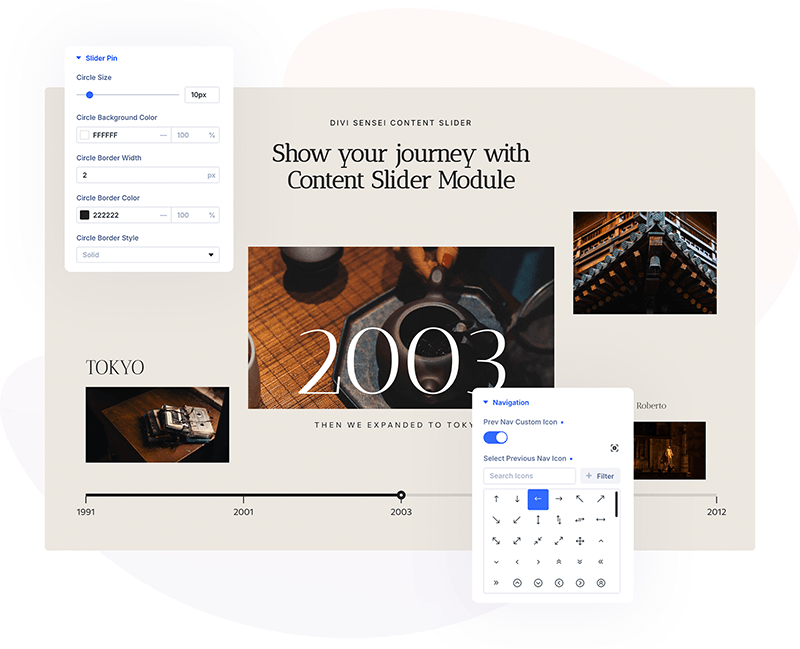
With the Content Slider module you can:
- Show and hide any sections, rows or modules on your page from a timeline with labels and descriptions
- Let visitors switch slides by clicking or hovering labels and the progress line, by dragging the pin, or with previous/next arrows
- Animate the content change with 19 entrance effects
- Show only a set number of timeline items at once, with loop navigation
- Open a specific slide from any link or straight from the page URL
- Style the progress line, gradations, slider pin, labels and descriptions, each with its own active state
Installation
Divi Sensei Content Slider is a standalone plugin:
- In WordPress, go to Plugins → Add New → Upload Plugin
- Upload the plugin ZIP file, click Install Now, then Activate
- The Content Slider module appears in the Divi Builder’s module list
How the module works
The Content Slider is the timeline only. The slides themselves are regular Divi sections, rows or modules that you design anywhere on the page with the Divi Builder. You connect them through CSS selectors: every timeline item has a Selector (a CSS class like .plan-basic or an ID like #plan-basic), and you give the same class or ID to the content that belongs to that item.
On the front end, only the content of the active item is visible. When a visitor picks another item, its content appears and the previous content is hidden. You can give one class to several rows or modules to show them together in one slide.
How to add the Content Slider module
- Open a page with the Divi Visual Builder
- Click the + (Add New Module) button
- Search for Content Slider and click Sensei Content Slider to insert the module
- Click Add New Item for every point on the timeline
- In each item, enter a Label and a Selector, for example .plan-basic, .plan-advanced and .plan-pro
- Design the content for each slide as a section, row or module
- Open its settings, go to Advanced → CSS ID & Classes and add the matching class or ID
- Turn on Active Item in the item that should be shown first
NOTE: Use a different selector for every item. Place the Content Slider above your slides to show the timeline on top, or below them to show it underneath.
Content Slider Item
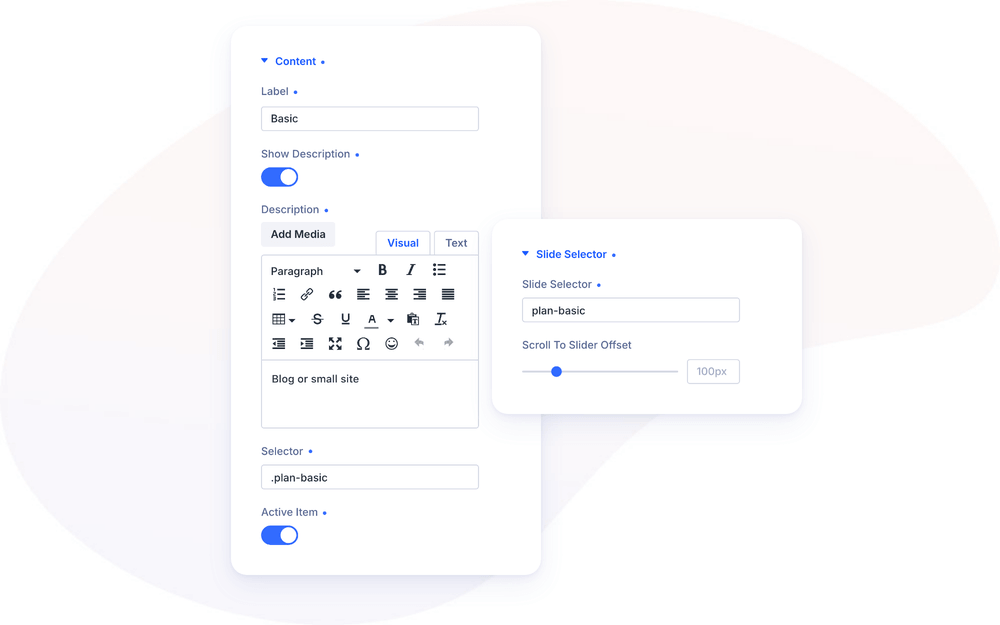
Each item adds one point to the timeline. Its Content group has these settings:
- Label – the text shown at the timeline point
- Show Description – turn on to show a description under the label
- Description – rich-text description, for example “Blog or small site” under a “Basic” plan
- Selector – the CSS class or ID of the content this item reveals, including the dot or hash (.plan-basic or #plan-basic)
- Active Item – makes this item the active one when the page loads
Slide Selector
The Slide Selector group lets you open a slide from a link:
- Slide Selector – a name for the slide, for example plan-basic. Any link on the page that points to #plan-basic now opens this slide, and visitors who arrive with #plan-basic in the page URL land on it straight away
- Scroll To Slider Offset – when a slide is opened this way, the page scrolls to the slider and stops this far above it (0–500px, default 100px), so a fixed header doesn’t cover it
Settings
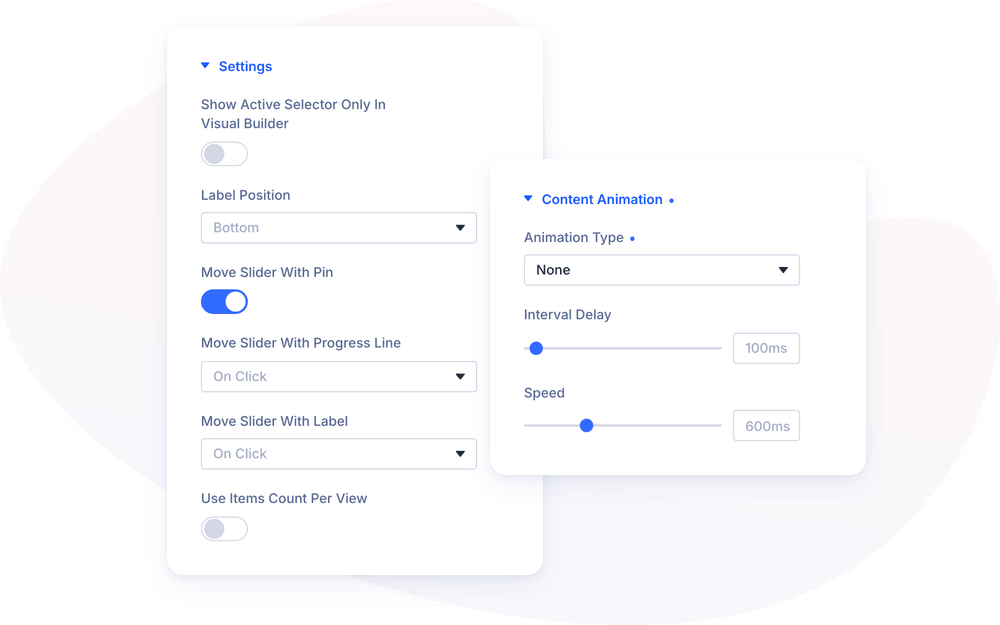
The Settings group of the main module controls how visitors move along the timeline:
- Show Active Selector Only in Visual Builder – hides the content of inactive items in the Visual Builder too. Turn it on after you finish designing all slides, so the builder shows the page as visitors see it
- Label Position – show labels and descriptions at the Bottom (default) or Top of the progress line
- Move Slider with Pin – lets visitors drag the pin along the line to switch slides (on by default)
- Move Slider with Progress Line – switch slides by clicking (On Click, default) or hovering (On Hover) the progress line, or Disable it
- Move Slider with Label – the same three options for the labels
- Use Items Count Per View – show only part of the timeline at once. Long timelines then slide along as visitors move through them
With Use Items Count Per View turned on, two more options appear:
- Items Count Per View – how many items are visible at once (2–20, default 7)
- Enable Loop – after the last item, the next arrow returns to the first one, and the previous arrow goes from the first to the last
Navigation
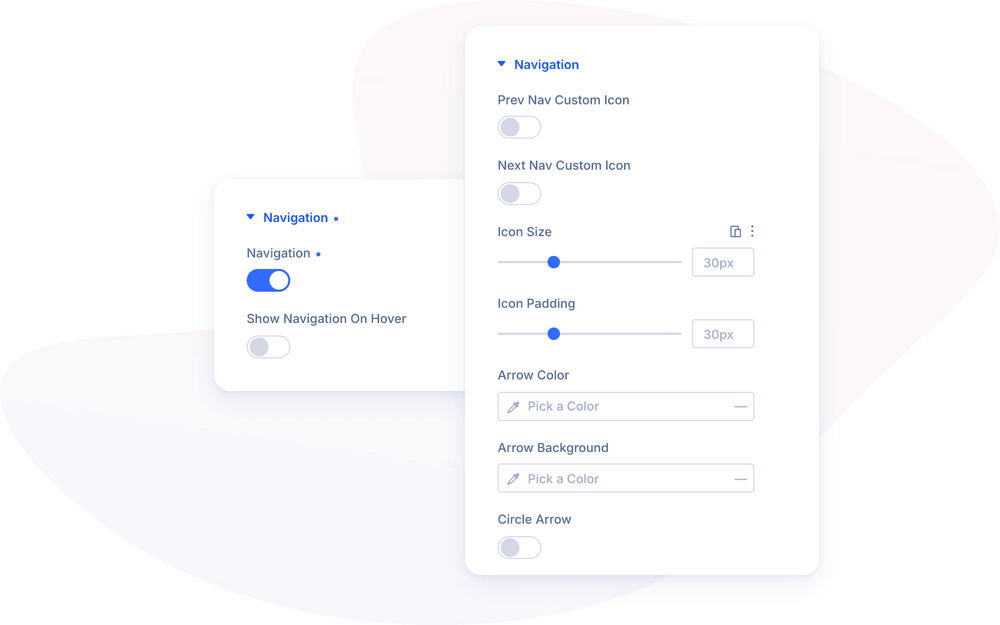
Turn on Navigation to add previous and next arrows on both sides of the timeline. Show Navigation On Hover hides the arrows until the visitor moves the mouse over the slider. Without Enable Loop, the arrows are disabled at the first and last item.
Content Animation
Animation Type sets how the content of the new slide appears. Choose None (default) or one of 19 effects: Fade In, FadeIn Left, FadeIn Right, FadeIn Up, FadeIn Down, Grow, BounceIn, BounceIn Left, BounceIn Right, BounceIn Up, BounceIn Down, FlipInX, FlipInY, JackInTheBox, RotateIn, RotateIn DownLeft, RotateIn UpLeft, RotateIn DownRight and RotateIn UpRight.
- Interval Delay – the wait before the animation starts (0–3000ms, default 100ms)
- Speed – how long the animation takes (0–2000ms, default 600ms)
Design Settings
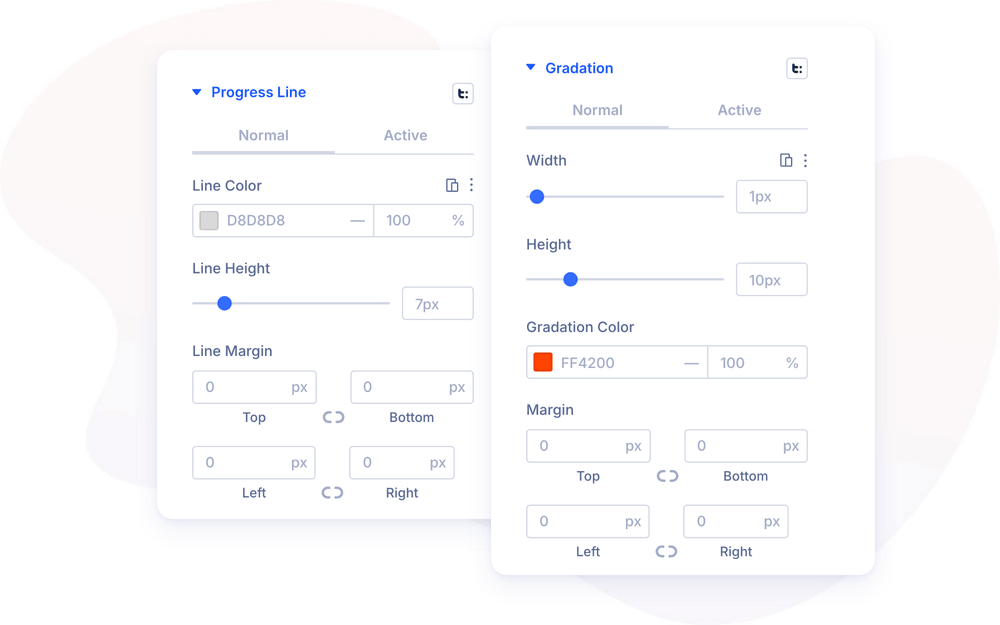
The Design tab styles every part of the timeline. Most groups have Normal and Active tabs, so the active part can look different from the rest:
- Navigation – custom previous and next icons, Icon Size, Icon Padding, Arrow Color, Arrow Background, Circle Arrow and the position of the arrows
- Progress Line – Line Color, Line Height and Line Margin of the full line, and the same options for the active part of the line, plus border and box shadow
- Gradation – width, height, color and margin of the small tick marks at each timeline point
- Slider Pin – Circle Size, Circle Background Color and border of the pin
- Label and Description – full Divi font controls for the label and description text
Each item also has its own Label, Description and Slider Pin design groups, so you can style a single point differently, for example to highlight a recommended plan.
Design Ideas
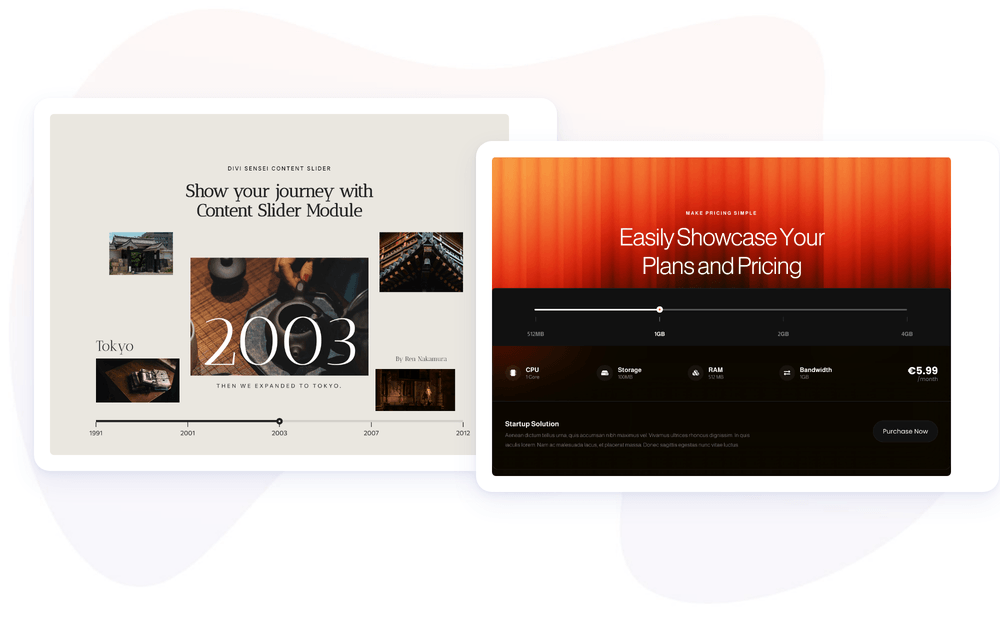
- Pricing switcher – labels such as 512MB, 1GB, 2GB and 4GB, each revealing a row with its plan details and price. Drag the pin to compare plans.
- Company timeline – years as labels, with a large image and a short story for each year. Use FadeIn Up for the content change.
- Product variants – color names as labels and a product image row for each color, with Move Slider with Label set to On Hover.
- Course chapters – a long list of lessons with Items Count Per View at 5, Navigation on and Enable Loop for easy browsing.