
Expanding CTA
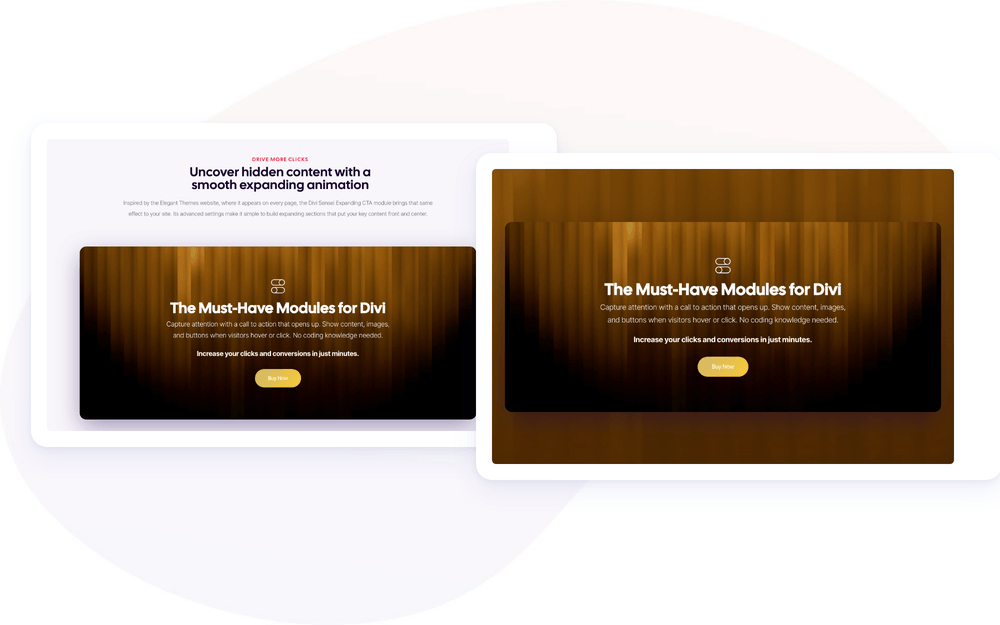
Meet the Divi Sensei Expanding CTA module for Divi! It turns a call to action into a full-screen moment. As visitors scroll down the page, the CTA grows to fill the screen when it reaches the middle of the browser window, with a soft zoom and an overlay that hides everything else. Once they scroll past, it settles back into the page. Use it for signups, promotions, product launches and any announcement that must not be missed.
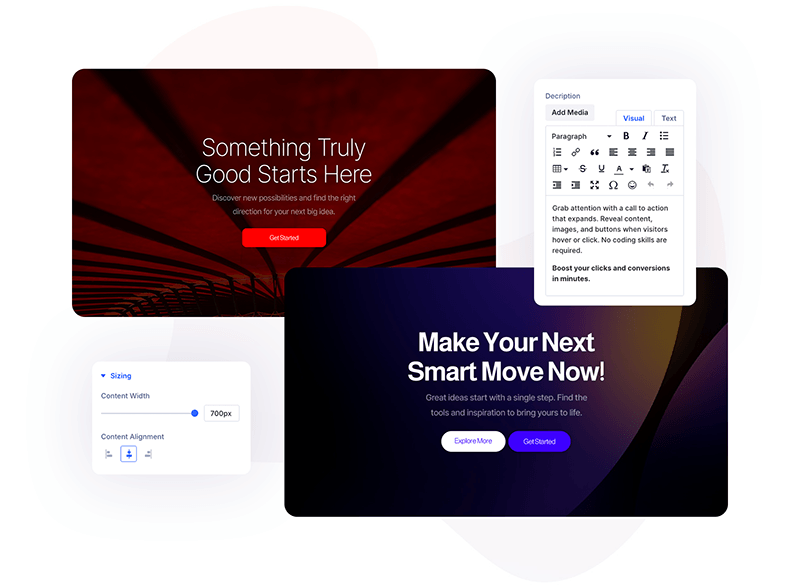
With the Expanding CTA module you can:
- Build the CTA from an image or icon, a title, a rich-text description and up to two buttons
- Expand the CTA automatically on scroll, with an adjustable zoom effect
- Color the full-screen overlay with a solid color, a gradient or an image
- Hide the site header and the Back To Top button while the CTA is expanded
- Choose whether the overlay sits above or below the module background
- Make the whole CTA a link
Installation
Divi Sensei Expanding CTA is a standalone plugin:
- In WordPress, go to Plugins → Add New → Upload Plugin
- Upload the plugin ZIP file, click Install Now, then Activate
- The Expanding CTA module appears in the Divi Builder’s module list
How the module works
The Expanding CTA is a regular card on your page until the visitor scrolls to it. When the top of the module reaches the middle of the browser window, the CTA expands: it zooms by the Zoom in Expanding factor, an overlay covers the rest of the page, and the header and Back To Top button can be hidden. The expansion lasts while the module passes through the middle of the screen. Scroll further down, or back up, and the CTA returns to its normal size.
NOTE: The CTA also closes when the visitor reaches the very bottom of the page. Leave some content below the module, so the expanded state has room to play out.
How to add the Expanding CTA module
- Open a page with the Divi Visual Builder
- Click the + (Add New Module) button
- Search for Expanding and click Sensei ExpandingCTA to insert the module
- Add your image or icon, title, description and buttons in the Content group
- Fine-tune the expansion in Expand & Overlay Settings
Content
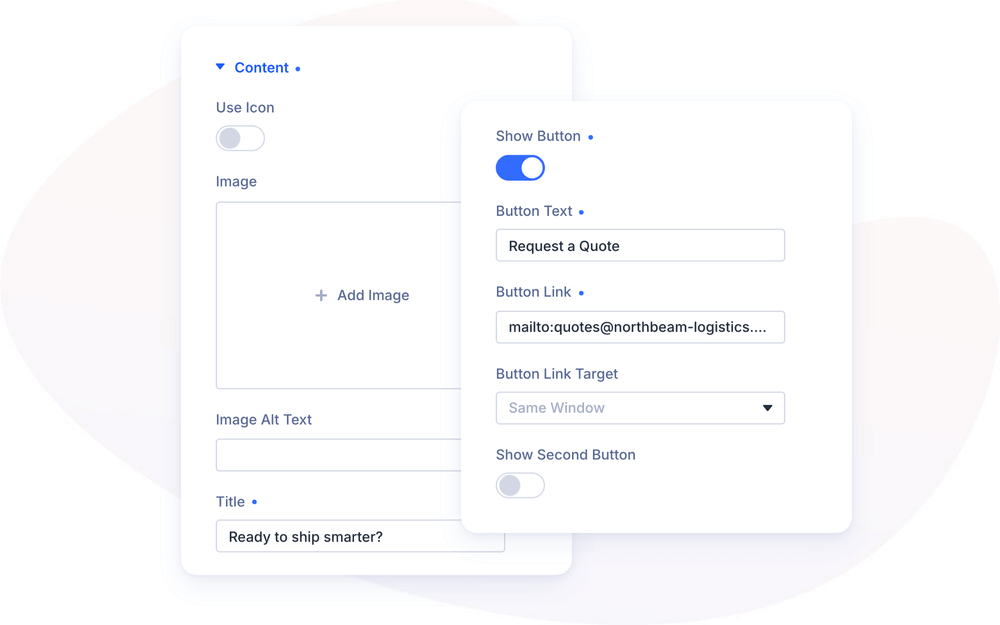
In the Content group you build the CTA itself:
- Use Icon – turn on to show a Divi icon instead of an image
- Image / Icon – the visual at the top of the CTA
- Image Alt Text – alternative text for the image
- Title – the CTA heading
- Description – rich-text content below the title
- Show Button – adds the first button, with its own Button Text, Button Link and Button Link Target
- Show Second Button – adds a second button with the same three options, for example a “Learn More” link next to “Buy Now”
Expand & Overlay Settings
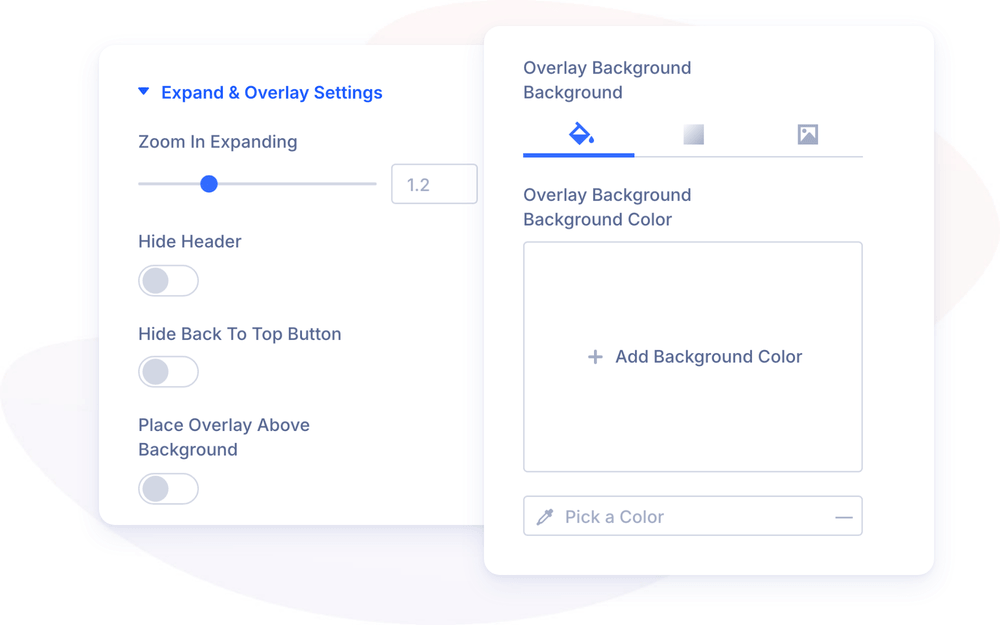
These settings control what happens when the CTA expands:
- Zoom in Expanding – how much the CTA scales while expanded (0.5–3, default 1.2). Values below 1 shrink the CTA instead
- Hide Header – hides the site header while the CTA is expanded, for a distraction-free view
- Hide Back To Top Button – hides Divi’s Back To Top button while the CTA is expanded
- Place Overlay Above Background – On: the overlay covers the module’s own background. Off (default): the overlay sits underneath it, so the module background stays visible
- Overlay Background – the full-screen layer behind the expanded CTA. Choose a color, a gradient or an image
Link
The Link group makes the whole CTA clickable. Enter a Content Link URL and choose whether it opens In The Same Window or In The New Tab. The buttons keep their own links.
Design Settings
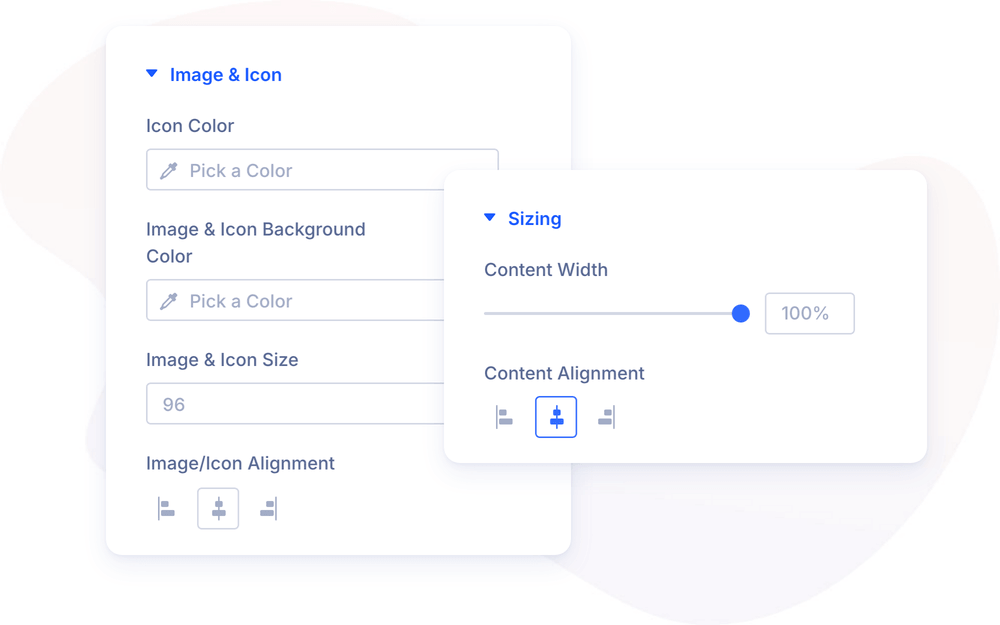
The Design tab styles every part of the CTA:
- Expanding CTA – background, border and box shadow of the CTA card that expands
- Image & Icon – Icon Color, Image & Icon Background Color, Image & Icon Size (default 96px) and Image/Icon Alignment, plus border radius, border, margin, padding, box shadow and image filters
- Text – full Divi font controls, with separate tabs for the Title and the Description
- Button One / Button Two – separate full button styling for each button
- Sizing – Content Width and Content Alignment for the text inside the CTA, plus the standard Divi width and height options
- Spacing – margin and padding of the module
- Main Background – border and box shadow of the module wrapper. Its background is set in the Background group of the Content tab
Advanced Settings
The Advanced tab includes the standard Divi options: Attributes (CSS ID & Classes), Custom CSS, Conditions, Visibility, Transitions, Position and Scroll Effects. The Custom CSS section has dedicated fields for the Container, Container Background, Content Wrapper, Content, Image/Icon, Title, Description, Button Wrapper and Button.
Design Ideas
- Newsletter takeover – an icon, a short title and one button. Turn on Hide Header and Hide Back To Top Button so the expanded CTA is fully distraction-free.
- Product reveal – a product image, a bold title and two buttons (“Buy Now” / “Learn More”), with Zoom in Expanding at 1.4 for a dramatic expansion.
- Dark spotlight – a near-black Overlay Background behind a bright CTA card, so the page fades away and only your offer stays lit.
- Full-card link – skip the buttons and use the Content Link URL, so a click anywhere on the expanded CTA takes visitors to your offer.