
FAQ
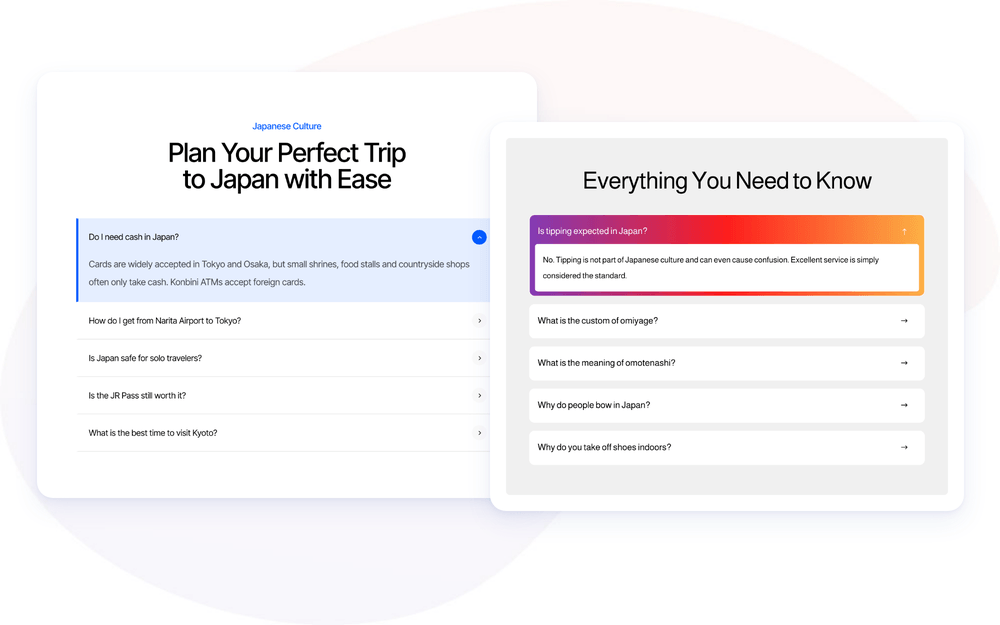
Meet the Divi Sensei FAQ module for Divi! It turns your questions and answers into a clean accordion, a set of toggles or a plain list, and can add Schema.org FAQPage structured data to the page automatically. You write each question once in the WordPress dashboard, sort it into categories, and show it on any page. Your FAQ helps visitors find answers fast.
With the FAQ module you can:
- Manage all questions and answers in one place, as FAQ entries in your WordPress dashboard
- Show all entries, entries from selected categories, or a hand-picked list of entry IDs
- Choose between an Accordion, Individual Toggles or Plain Text layout
- Output FAQPage structured data (ld+json), with or without the visible FAQ
- Pick your own open and closed icons and animate them
- Style closed and open entries separately: background, spacing, borders, titles and content
Installation
Divi Sensei FAQ is a standalone plugin:
- In WordPress, go to Plugins → Add New → Upload Plugin
- Upload the plugin ZIP file, click Install Now, then Activate
- A new FAQ menu appears in your WordPress dashboard, and the FAQ module appears in the Divi Builder’s module list
How to add FAQ entries
The FAQ module does not store questions inside the module. It adds an FAQ custom post type to your dashboard, where every question is its own entry. The same entry can be used by any number of FAQ modules across your site.
- In your WordPress dashboard, go to FAQ → Add New
- Enter the question as the title
- Enter the answer in the editor. You can use formatting, links and images
- Optionally, fill in the Short Answer (the post Excerpt). When set, it is used as the answer in the structured data instead of the full content
- Optionally, assign one or more Categories, so you can show groups of questions in different modules
- Click Publish
NOTE: Use the Order field in the entry’s Page Attributes if you want to sort your questions by hand. Then set Order By to Menu Order in the module.
NOTE: Importing a demo section from the demo page imports the module and its design only, not the FAQ entries. To make an imported demo section work, add your own FAQ entries first. If the module is set to show selected categories, also assign your entries to a category and select it in the module’s Content settings, or turn on Show All FAQ.
How to add the FAQ module
- Open a page with the Divi Visual Builder
- Click the + (Add New Module) button
- Search for FAQ and click Sensei FAQ to insert the module
- Choose which entries to show in the Content group
- Pick a layout in Design → Layout
Content
In the Content group you choose which entries the module shows and what it outputs:
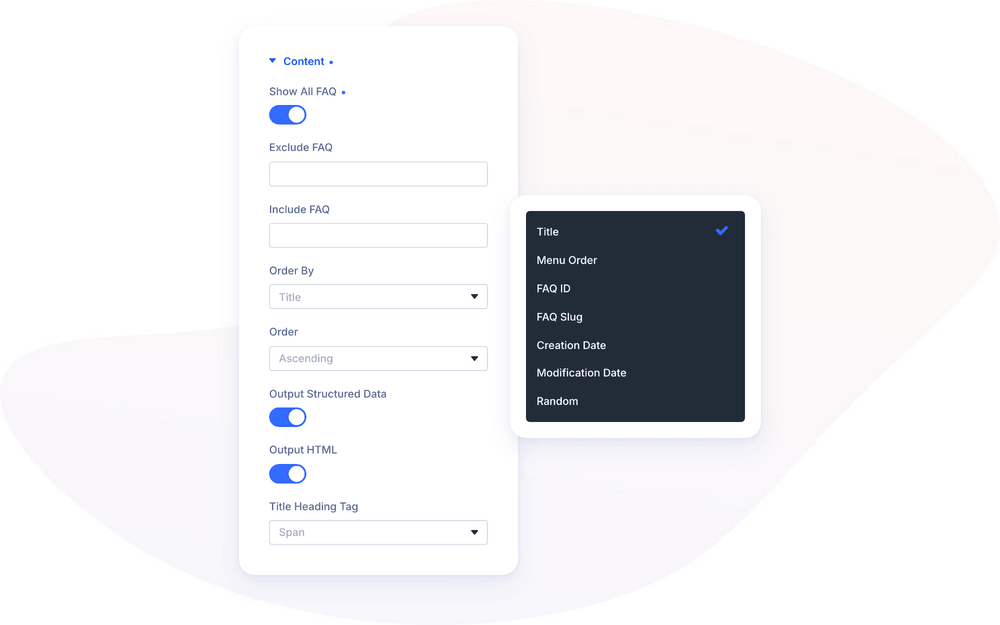
- Show All FAQ – shows every published FAQ entry, with or without a category
- Categories – the FAQ categories to show. Visible when Show All FAQ is off
- Show Uncategorized FAQ – adds the entries that have no category. Visible when Show All FAQ is off
- Exclude FAQ – a comma-separated list of FAQ entry IDs to leave out
- Include FAQ – a comma-separated list of FAQ entry IDs to add on top of the selected categories
- Order By – how the entries are sorted
- Order – Ascending or Descending. Hidden when Order By is set to Random
- Output Structured Data – adds the FAQPage ld+json data to the page (on by default)
- Output HTML – shows the FAQ on the page (on by default)
- Title Heading Tag – the HTML tag of each question: H1–H6, Span (default) or P
Order By offers these options:
- Title (default)
- Menu Order
- FAQ ID
- FAQ Slug
- Creation Date
- Modification Date
- Random
NOTE: If you turn off Output HTML to output only the structured data, make sure the same questions and answers are visible somewhere else on the page. Structured data should always describe content that visitors can see.
The Link and Background groups work like in any other Divi module.
Design Settings
Layout
The Layout group sets how the entries behave:
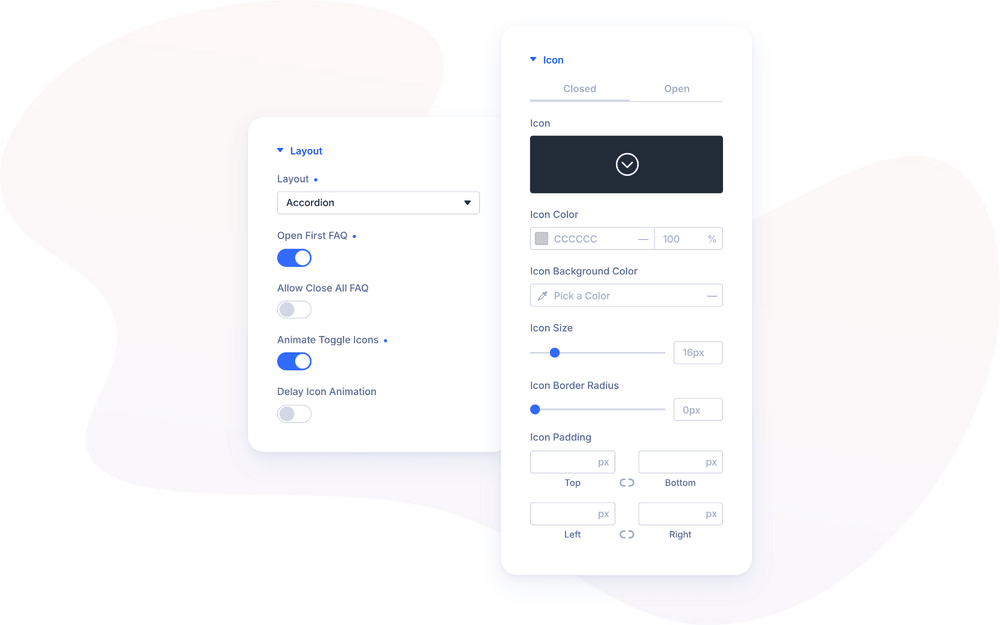
- Layout – one of the three layouts listed below
- Open First FAQ – opens the first entry when the page loads. Accordion only
- Allow Close All FAQ – lets visitors close the open entry, so all entries are closed. When off, one entry always stays open. Accordion only
- Animate Toggle Icons – rotates the icon as it switches between the closed and open icon. Accordion and Individual Toggles only
- Delay Icon Animation – waits a short moment (0.3 s) before the icon animation starts. Visible when Animate Toggle Icons is on
The three layouts are:
- Individual Toggles (default) – every entry opens and closes on its own, so visitors can open several at once
- Accordion – only one entry is open at a time. Opening an entry closes the previous one
- Plain Text – all questions and answers are shown, with no toggling and no icons
Icon
The Icon group has a Closed and an Open tab, so each state gets its own look. In each tab you can set the Icon, Icon Color, Icon Background Color, Icon Size (default 16px), Icon Border Radius and Icon Padding. The icon settings do not apply to the Plain Text layout.
Entry, Title and Content
The remaining groups style the parts of each entry. Most of them have Closed and Open tabs, so an open entry can stand out from the closed ones:
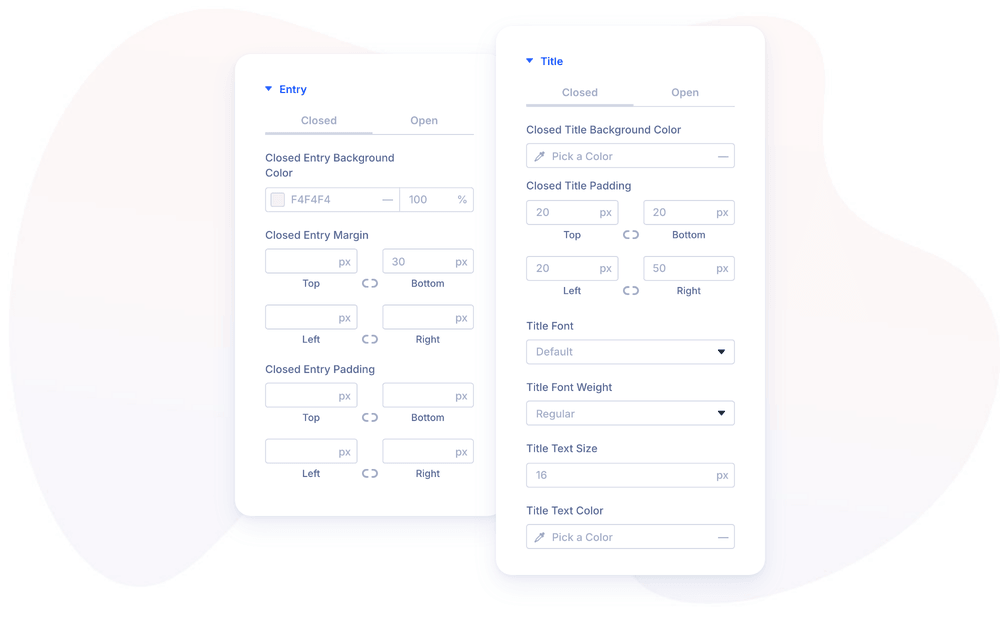
- Entry – background color, margin and padding of the whole entry. Closed entries default to a light grey background with a 30px bottom margin
- Closed Entry Styles / Open Entry Styles – border and box shadow of the entry
- Title – background color, padding and full font settings of the question
- Closed Title Border / Open Title Border – border of the question area
- Content – background color, padding and full font settings of the answer, plus a Link tab for links inside answers
- Closed Content Border / Open Content Border – border of the answer area
The standard Divi Sizing, Spacing, Border, Box Shadow, Filters, Transform and Animation groups style the module as a whole.
Advanced Settings
The Advanced tab includes the standard Divi options: Attributes (CSS ID & Classes), Custom CSS, Conditions, Visibility, Transitions, Position and Scroll Effects. The Custom CSS section has dedicated fields for the Wrapper around Entries, Entries, Entries (Closed), Entries (Open), Title, Title (Closed), Title (Open), Content, Content (Closed) and Content (Open).
WPML Translation
To translate FAQ entries with WPML, make the post type translatable first. Go to WPML → Settings → Post Types Translation, find FAQ (ds_faq) and set it to Translatable. By default it is set to Not translatable.
Design Ideas
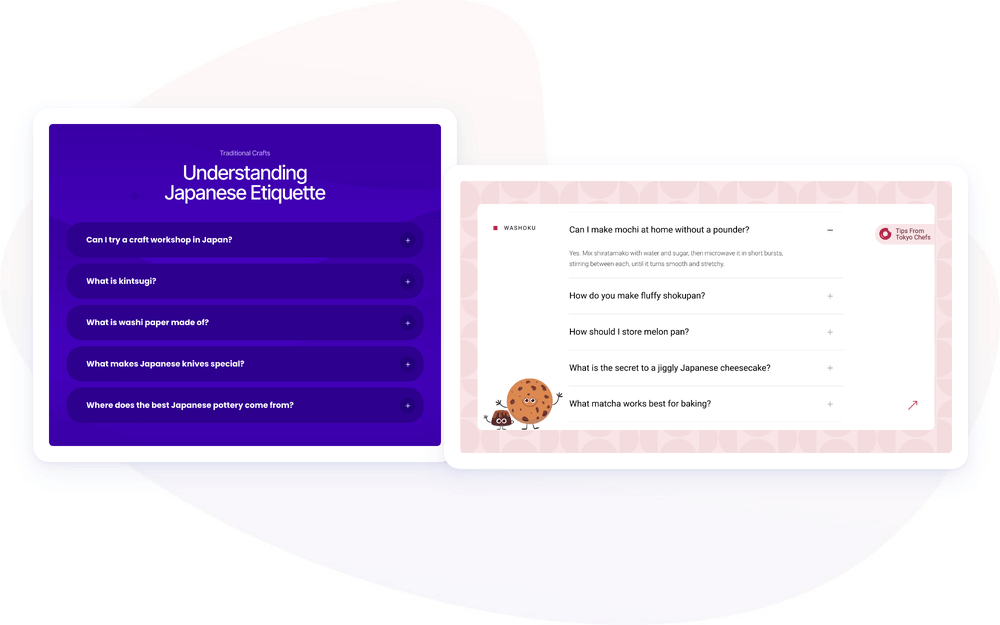
- Help center – one FAQ module per category on a support page, each with Show All FAQ off and a single category selected, so every topic gets its own section.
- Highlighted answer – the Accordion layout with Open First FAQ on and a tinted Open Entry Background Color, so the open question clearly stands out.
- Dark cards – rounded entries in a dark color on a matching section background, with white titles and a small “+” icon in a circle created with Icon Background Color and Icon Border Radius.
- Product page FAQ – use Include FAQ to pick the three or four questions that matter for one product.