
Filterable Gallery
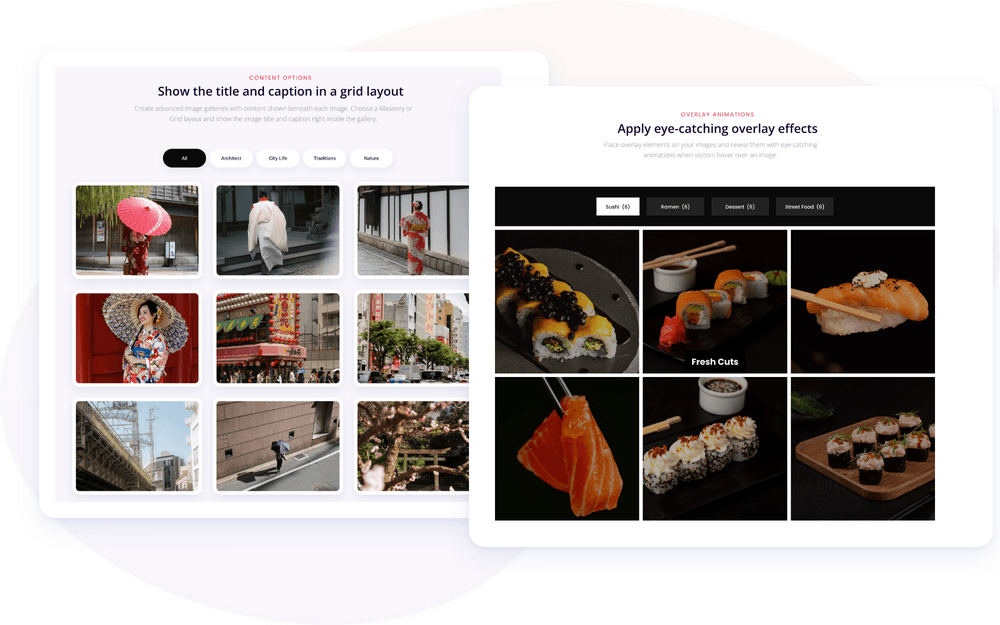
Meet the Divi Sensei Filterable Gallery module for Divi! It builds image galleries straight from your WordPress Media Library and lets visitors filter them by category with a single click. Choose a grid or masonry layout, show titles and captions under the images, and reveal icons, titles and captions in an animated overlay on hover. It works for portfolios, product and food galleries, team pages and anything else that needs sorting.
With the Filterable Gallery module you can:
- Sort Media Library images into categories and show them in a gallery with a filter bar
- Lay out images in a grid or masonry layout with any number of columns
- Open images in a lightbox, or link each image to its own page
- Add a hover overlay with an icon, title and caption, each with its own entrance animation
- Split large galleries with numbered pagination, a Load More button or infinite scroll
- Animate the grid when visitors switch filters, and add hover effects to the images
Installation
Divi Sensei Filterable Gallery is a standalone plugin:
- In WordPress, go to Plugins → Add New → Upload Plugin
- Upload the plugin ZIP file, click Install Now, then Activate
- The Filterable Gallery module appears in the Divi Builder’s module list
Image Categories
The gallery is built from categories you assign to images in the Media Library. The plugin adds a new Divi Sensei Categories taxonomy for this, plus a link field for each image.
To create the categories:
- In WordPress, go to Media → Divi Sensei Categories
- Enter a category name, for example “Architecture”
- Click Add New Divi Sensei Category
- Repeat for every filter you want in the gallery
Then assign the categories to your images:
- Go to Media → Library and click an image
- Add a Title and Caption if you want to show them in the gallery
- Enter one or more categories in the Divi Sensei Category field, separated by commas. On the full edit screen (Edit more details), you can also pick them from Choose from the most used Divi Sensei Categories
- Optionally enter a Divi Sensei Image Link and choose a Divi Sensei Image Link Target, if the image should open another page
An image can belong to several categories and then appears under each of those filters.
How to add the Filterable Gallery module
- Open a page with the Divi Visual Builder
- Click the + (Add New Module) button
- Search for Filterable Gallery and click Sensei Filterable Gallery to insert the module
- In Filter Settings, tick the categories to include in the gallery
NOTE: The gallery stays empty until you select at least one category in Included Divi Sensei Category. Until then, the module shows a reminder with a link to the Media Library categories.
Filter Settings and Filter Bar
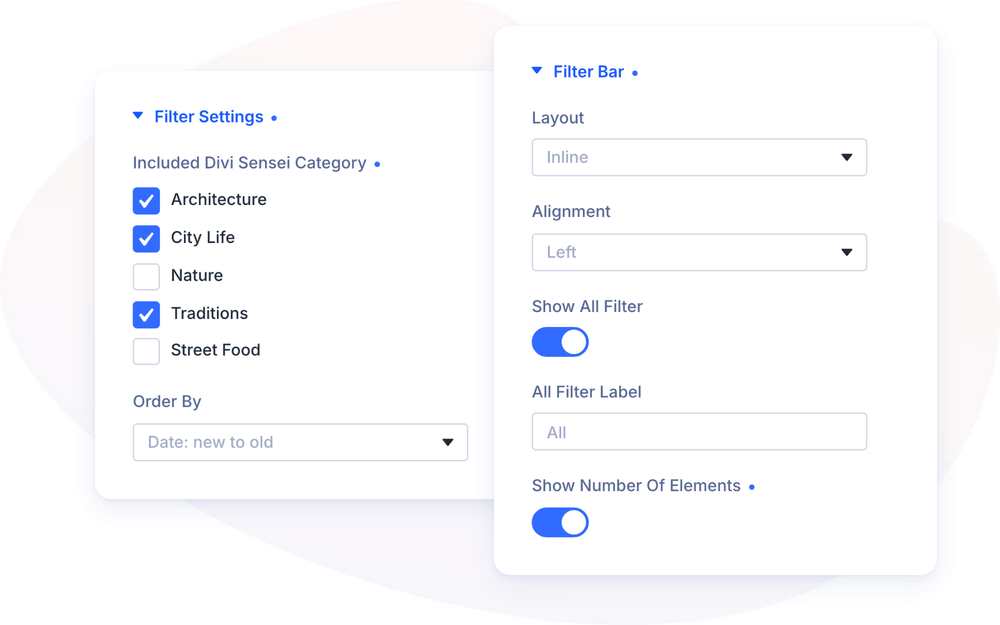
Filter Settings decides which images appear and in what order:
- Included Divi Sensei Category – the categories shown in the gallery. Each one becomes a filter in the filter bar
- Order By – Date: new to old (default), Date: old to new, Title: a-z, Title: z-a, Menu Order: ASC, Menu Order: DESC or Random
Filter Bar controls the filter buttons above the gallery:
- Layout – Inline puts the filters in a row; Stacked places them one under another, which works well on phones
- Alignment – Left, Center or Right
- Show All Filter – adds a filter that shows images from every category (on by default)
- All Filter Label – the text of that filter (default “All”)
- Show Number of Elements – shows the number of images next to each filter name
Grid and Grid Items
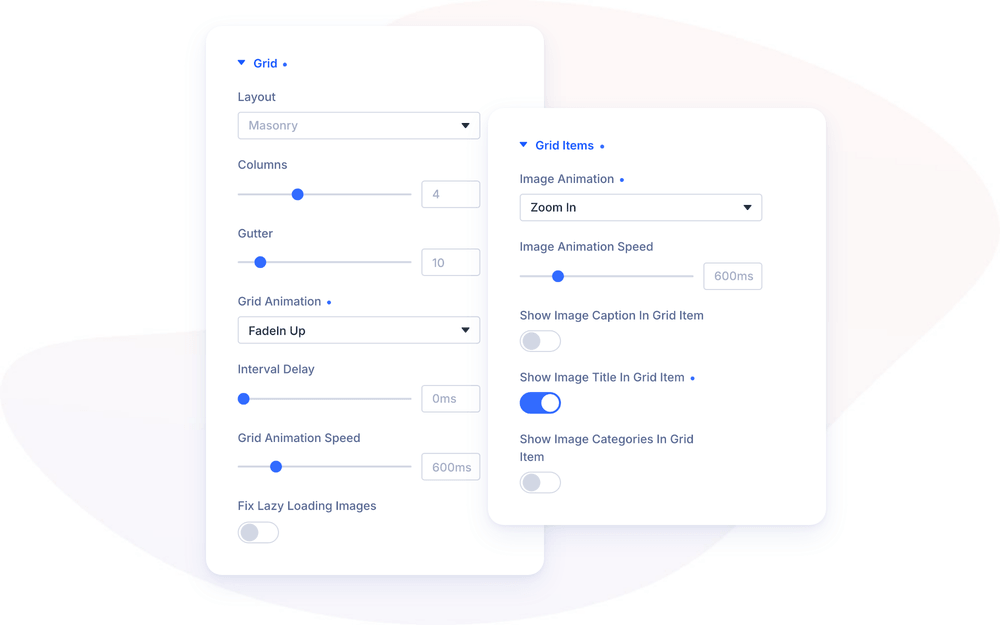
The Grid group sets the layout:
- Layout – Masonry (default) keeps each image’s own proportions; Grid gives every image the same Row Height
- Columns – number of columns (1–10, default 4)
- Gutter – space between images (0–100, default 10)
- Grid Animation – how images appear when visitors switch filters: None or one of 19 effects such as Fade In, FadeIn Up, Grow, BounceIn or FlipInX
- Interval Delay and Grid Animation Speed – timing of that animation (defaults 0ms and 600ms)
- Fix Lazy Loading Images – turn on if a lazy load plugin breaks the layout of the gallery
Set Columns, Gutter and Row Height for desktop, tablet and phone separately, so the gallery looks right on every screen.
The Grid Items group adds effects and text to every image:
- Image Animation – a hover effect on the image: Zoom In, Zoom Out, Move Up, Move Down, Move Left, Move Right or Rotate
- Image Animation Speed – duration of the hover effect (default 600ms)
- Show Image Caption in Grid Item, Show Image Title in Grid Item and Show Image Categories in Grid Item – show the caption, title and categories under each image
Images
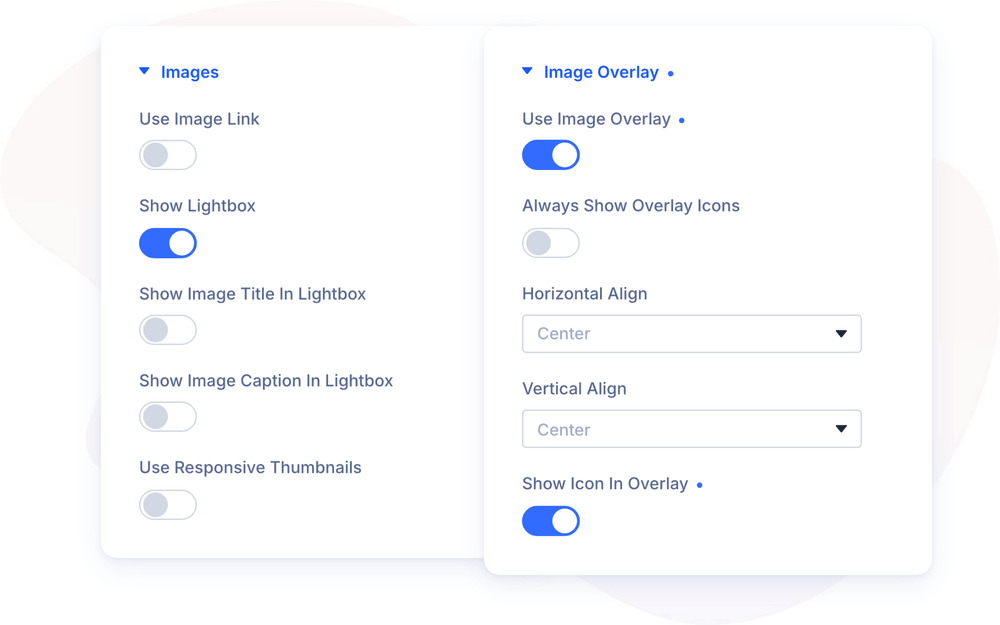
The Images group decides what happens when an image is clicked:
- Use Image Link – opens the Divi Sensei Image Link set in the Media Library
- Show Lightbox – opens the image in a full-screen lightbox (on by default). Hidden when Use Image Link is on
- Show Image Title in Lightbox and Show Image Caption in Lightbox – add the title and caption to the lightbox
- Use Responsive Thumbnails – load smaller image sizes in the grid. Pick the Image Size for desktop, tablet and phone to make the gallery load faster
To offer both the link and the lightbox, turn on Use Image Link and Use Image Overlay, then Show Lightbox and Link Icon in the Image Overlay group. The overlay then shows two icons, one for each.
Image Overlay
Turn on Use Image Overlay to show a colored layer over the image on hover. These options then appear:
- Show Lightbox and Link Icon – shows separate lightbox and link icons (only with Use Image Link)
- Horizontal Align and Vertical Align – position of the overlay content (default center)
- Show Icon in Overlay – adds an icon, chosen in Overlay Icon
- Always Show Overlay Icons – keeps the icons visible without hovering
- Show Image Title in Overlay and Show Image Caption in Overlay – add the title and caption to the overlay
NOTE: On phones and tablets, where there is no hover, the first tap shows the overlay and the second tap opens the lightbox or link.
Pagination and Image Overlay Animation
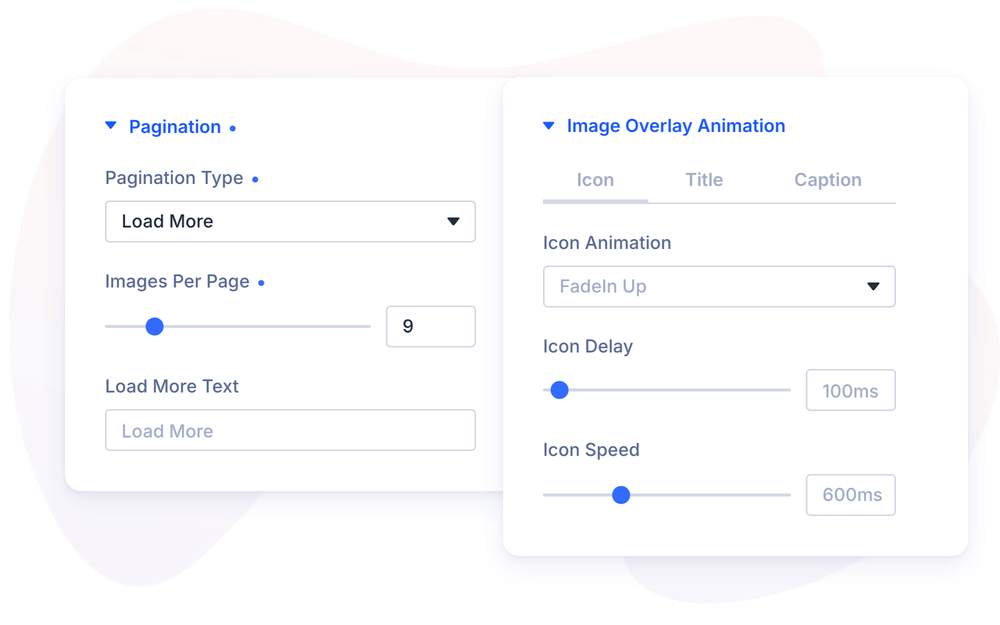
Pagination Type splits large galleries into pages:
- None (default) – shows all images at once. Limit them with Image Count (−1 shows all)
- Numbered Pagination – page numbers with Prev Button Text and Next Button Text. Turn on Scroll to Top on Pagination to bring visitors back to the top of the gallery, with an optional Scroll to Top Offset
- Load More – a button that adds the next images, with its own Load More Text
- Infinite Scroll – loads the next images automatically as visitors scroll. Infinite Scrolling Viewport sets how early they load (0–50%, default 25%)
Images Per Page sets how many images each page or load shows (default 10).
Image Overlay Animation gives the icon, title and caption their own entrance animation. Switch between the Icon, Title and Caption tabs, and set the Animation (default FadeIn Up), Delay and Speed for each. A longer delay on the caption (400ms by default) makes it appear after the title.
Design Settings
The Design tab styles every part of the gallery:
- Pagination Button – spacing, background, font, border and shadow of the page numbers, with Normal and Active tabs
- Load More – Alignment and full styling of the Load More button
- Filter Bar – Sticky Filter Bar keeps the filters visible while visitors scroll through a long gallery, with a Sticky Top Offset (default 80px). Also Space between Tabs, Space between Label and Number, spacing, background, border and box shadow
- Filter Bar Item – width, height, spacing, background, font, border and box shadow of each filter, with Normal and Active tabs
- Grid – spacing, background, border and box shadow of the whole gallery, plus Show Overflow for images with box shadows
- Grid Items – background, border and box shadow of each image
- Grid Item Text – font and spacing of the title, caption and categories under the images
- Image Overlay Text – font of the title and caption in the overlay
- Image Overlay – Overlay color, Overlay Icon Color, Circle Icon with its color and border, and Icon Font Size
Design Ideas
- Portfolio – masonry layout with 3 columns, Zoom In image animation and an overlay with the image title. Turn on Sticky Filter Bar for long galleries.
- Restaurant menu – a category for each course, Grid layout with equal Row Height, and the caption under each image for prices.
- Team page – staff photos in categories by department, Stacked filter bar on mobile, and the title and caption under each image for name and role.
- Large photo archive – Infinite Scroll with 12 Images Per Page and Use Responsive Thumbnails for fast loading.